1. Installation & Login
2. Dashboard Overview
3. Project Management
4. Communication & Notifications
5. Quotes & Billing
6. Revisions & Approvals
7. Payments & Invoices
8. Troubleshooting
9. FAQs
10. Support
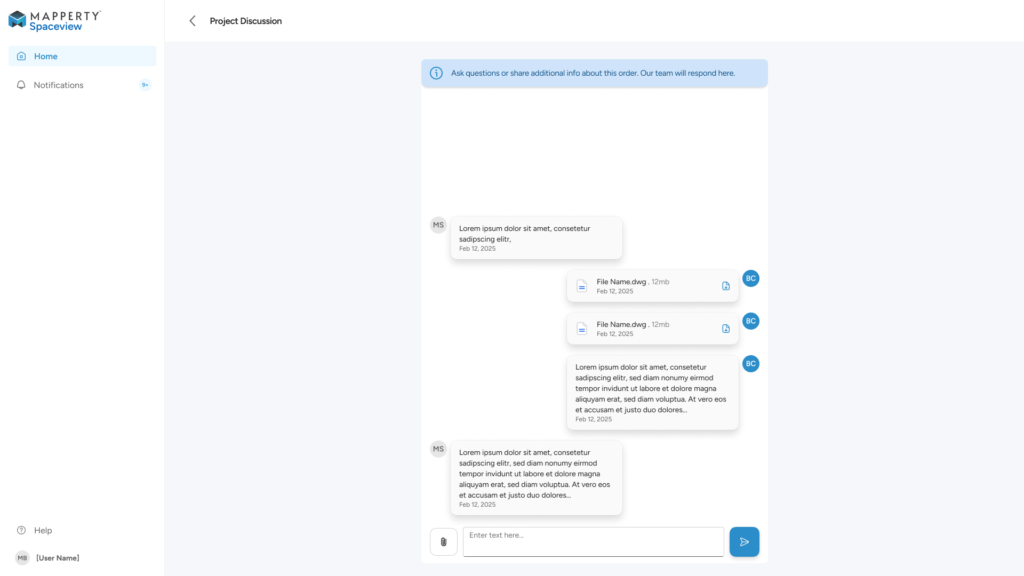
1. Installation & Login
1. Installation & Login
For Clients (iOS)
- Download the Mapperty Spaceview App from the App Store.
- Install the app and open it.
- Enter your registered email ID and password to log in.
- If you don’t have an account, use the Sign Up option to create one.
For Clients & Admins (Web)
- Open your browser and visit: www.mapperty.com.
- Click Login.
- Enter your credentials provided at registration.
Tip: If you forget your password, click “Forgot Password” and follow the reset instructions sent to your email.
2. Dashboard Overview
2. Dashboard Overview
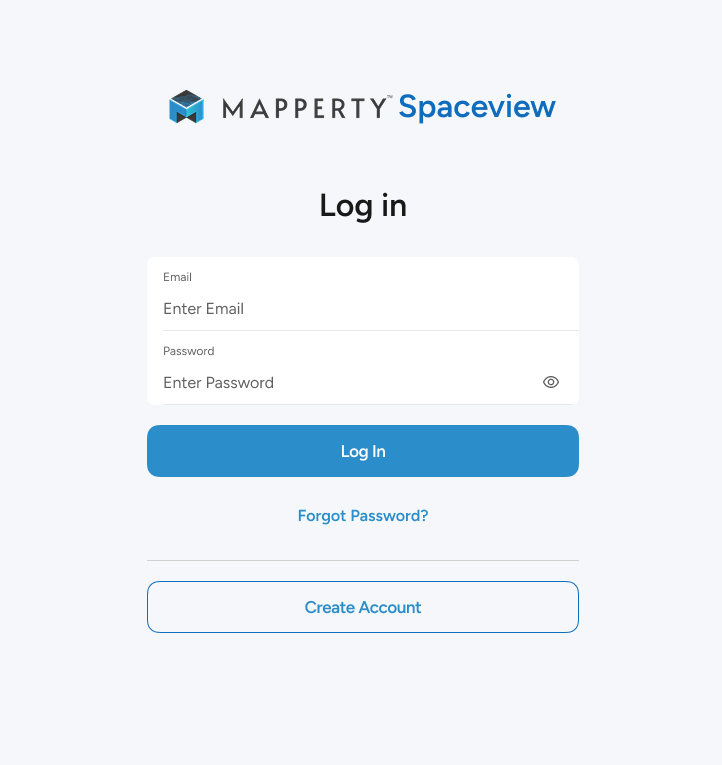
The Dashboard is your starting point after login.
- Clients see:
- A list of all ongoing and completed projects.
- Status indicators such as Pending, In Progress, Under Review, or Completed.
- Notifications for quotes, approvals, or pending payments.
- Admins see:
- All client requests in a central view.
- Project details including client name, request type, and submission date.
- Quick stats on pending approvals, active projects, and completed deliveries.
3. Project Management
3. Project Management
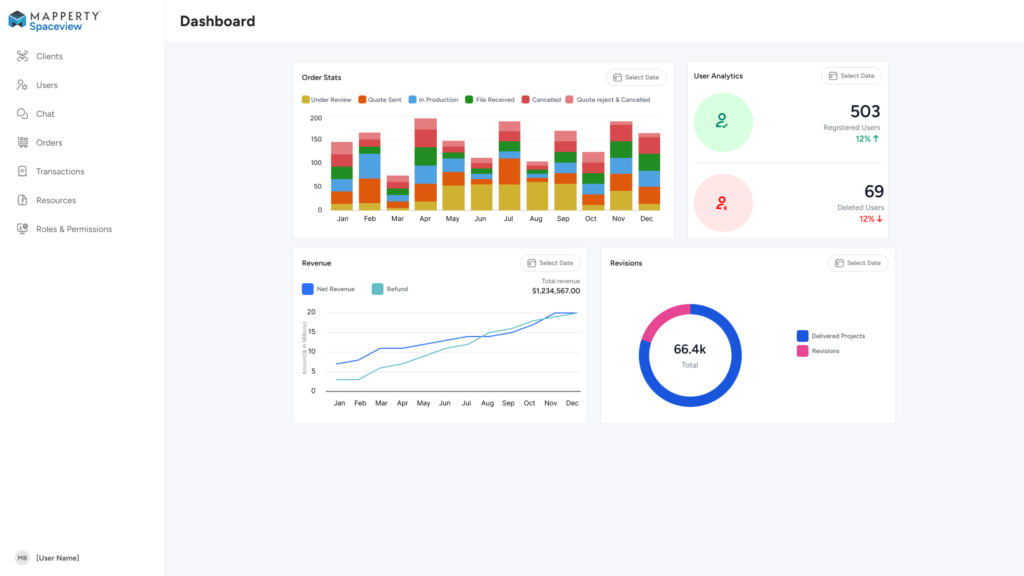
Projects are the core of Spaceview. Both clients and admins have tools to manage them effectively.Clients
- Create a new project request by clicking “Request a Model”.
- Upload relevant media such as floor plans, images, or videos.
- Add notes for special instructions.
- Submit request → The admin team receives it instantly.
Admins
- Review new client requests from the dashboard.
- Check submitted media for clarity and completeness.
- Approve, request revisions, or reject the request.
- Assign the request to the modeling/design team once approved.
4. Communication & Notifications
4. Communication & Notifications
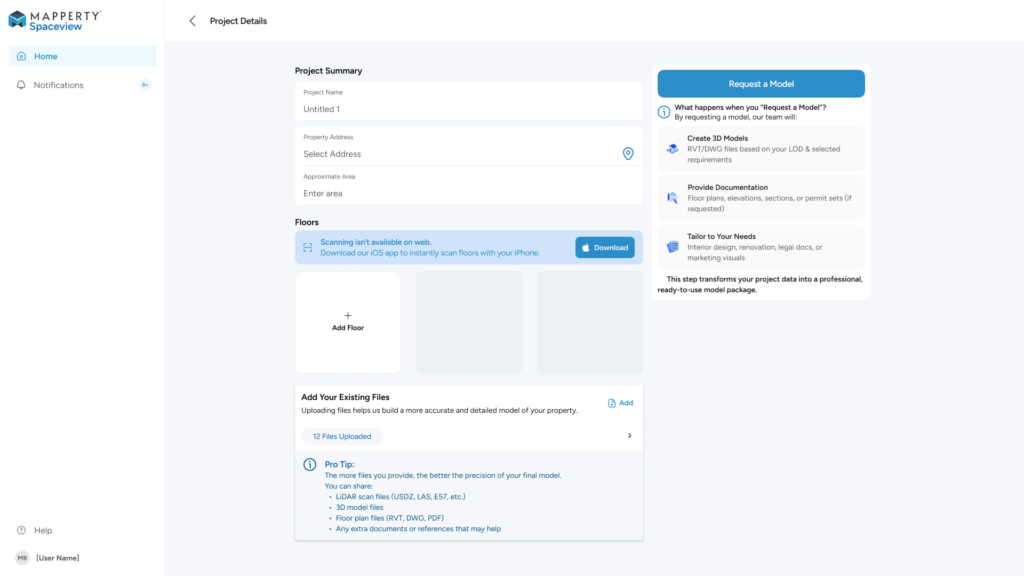
Smooth communication ensures accuracy.
- Clients get instant notifications when:
- Admin reviews their request.
- A model is ready.
- A quote is updated or a revision is requested.
- Admins get notified when:
- A client submits a new request.
- A client uploads additional media.
- A client responds to a quote.
Notifications are available in-app and via email.
5. Quotes & Billing
5. Quotes & Billing
For Clients
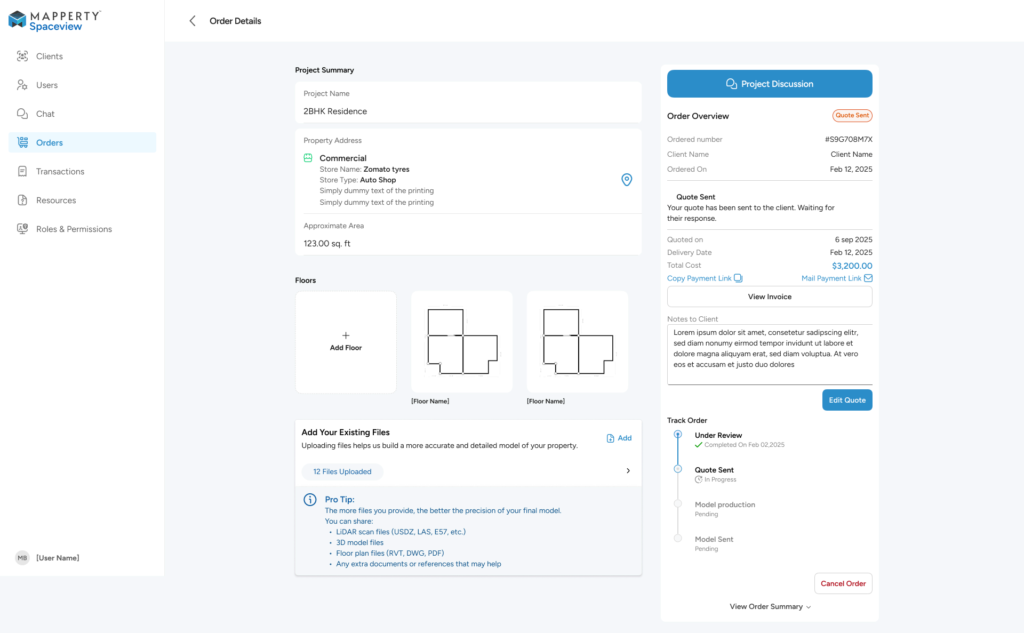
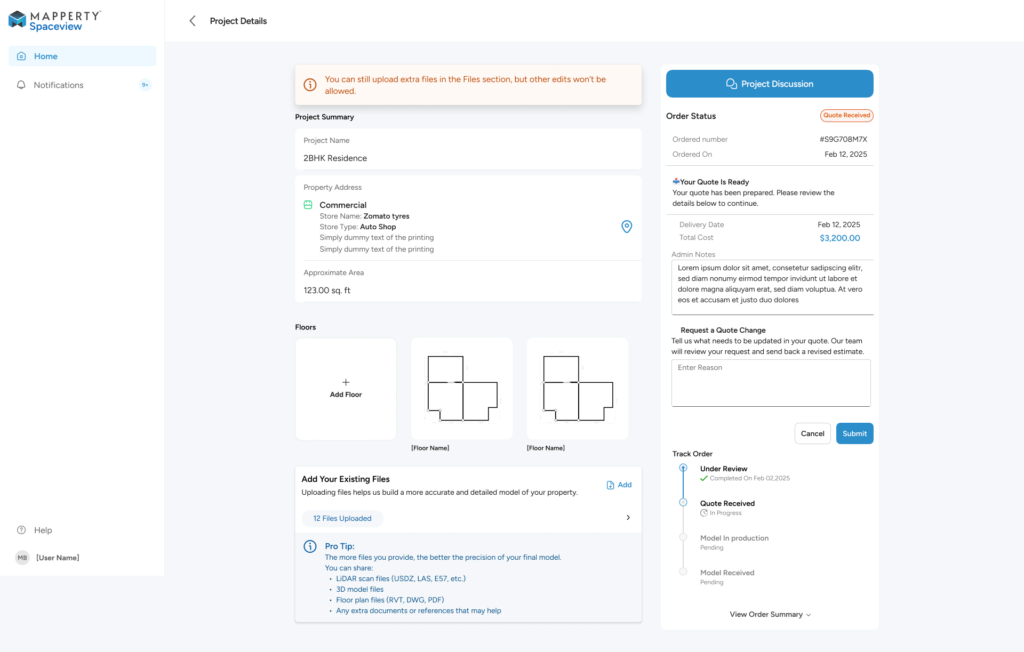
- After a request is approved, you receive a quote.
- Review the breakdown of costs, timelines, and deliverables.
- Choose to Accept or Reject the quote.
- If rejected, you can request adjustments, but if the admin rejects your changes, you still have the option to proceed with the last approved quote.
For Admins
- Generate and send quotes for each project.
- Update or revise quotes based on client feedback.
- Monitor which quotes are accepted, pending, or rejected.
6. Revisions & Approvals
6. Revisions & Approvals
Clients
- If the delivered model needs changes, submit a revision request.
- Attach comments or additional media to clarify your changes.
Admins
- Review client revision requests.
- Decide whether to accept (and send back for updates) or reject.
- If rejecting, ensure the client is notified that they can still move forward with the previously approved version.
7. Payments & Invoices
7. Payments & Invoices
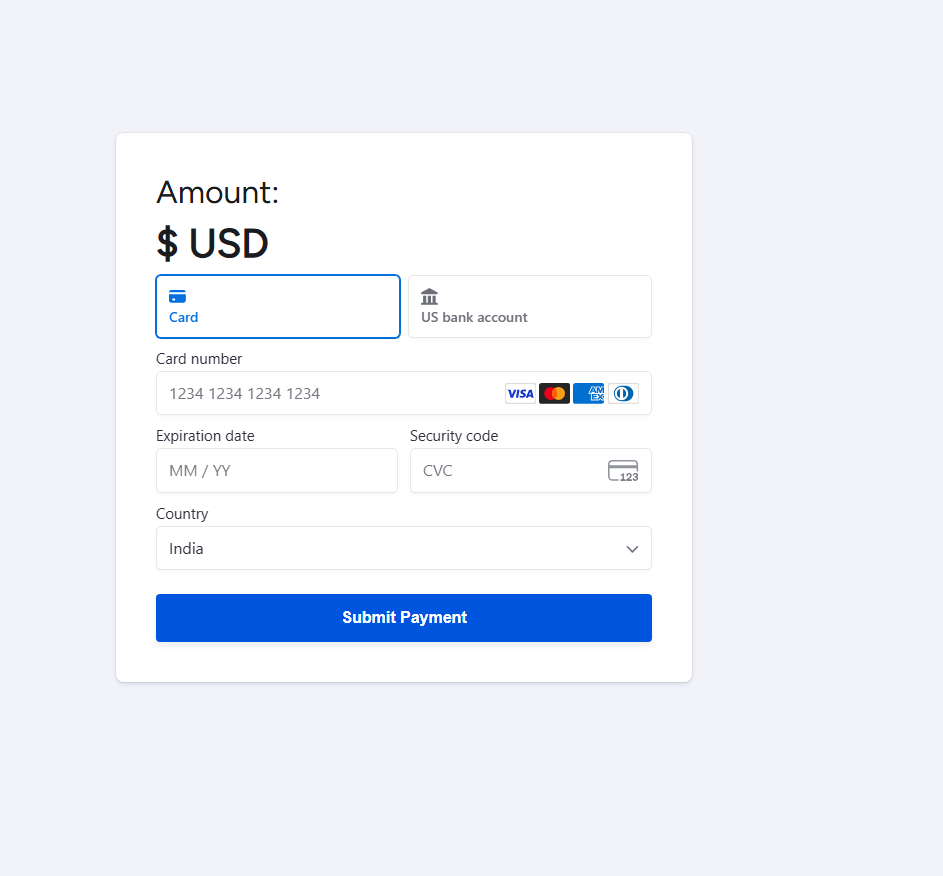
Payments are handled securely within the app and web portal.
- Clients:
- Make payments using integrated gateways (credit/debit cards, UPI, or bank transfers depending on region).
- Download invoices as PDF for records.
- View a history of all past transactions.
- Admins:
- Track which projects are paid/unpaid.
- Generate and send invoices automatically.
- Manage refunds or payment disputes if necessary.
8. Troubleshooting
8. Troubleshooting
Common issues and their solutions:
- Unable to Upload Media
- Check that the file format is supported (JPG, PNG, MP4, PDF).
- Ensure file size is within limits.
- Login Problems
- Use the “Forgot Password” option.
- Contact support if account remains locked.
- Payment Failure
- Retry with a different payment method.
- Contact your bank or Spaceview support.
9. FAQs
9. FAQs
Q-1: Can I request multiple models at once?
Ans: Yes, each request is handled as a separate project.
Q-2: Is it mandatory to upload media?
Ans: Not mandatory, but strongly recommended for higher accuracy.
Q-3: Can admins edit uploaded media?
Ans: No, only clients can re-upload or replace files.
10. Support
10. Support
If you encounter issues beyond this manual:
- Email: support@mapperty.com
- Live Chat: Available in the web login portal